Set DNS from PowerShell
It’s always DNS even with it is not. Right? So often at least I have found out many problems with internet connections is DNS. We work with at very powerful tool called Kasaya that we have on all of our clients pc’s which allow us a backdoor into the system as long as the computer itself is online. Now this is a very interesting piece of software that it has a backdoor powershell access. So super cool, but this allows us to do some quick and powerful administration when you can’t get the user to do things, or don’t want to have to wait for the user, or somethings that require elevated access. So powershell is that answer!
DNS, yes again its always DNS, so many times we see a client that says “I can’t connect to the internet” and you know the rest. Well if we can connect to that pc, then we know its online, so DNS right? How do we check this?
ipconfig /all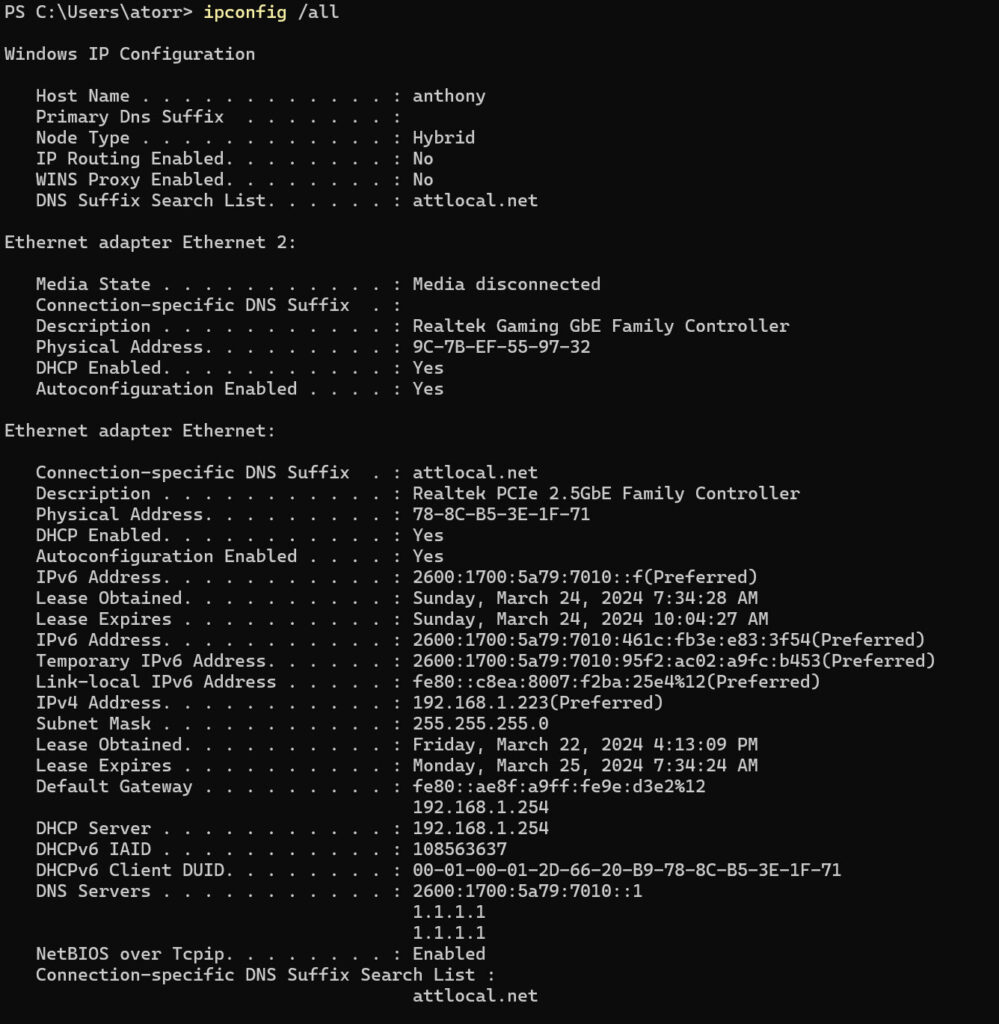
What we “normally” will see is under the DNS Servers section, it will either be something like 127.0.0.1 or something odd. Which means well you can’t look up DNS queries so well no internet. So how do we fix this?
We do it with two commands! First we need to find our connected interface.
netsh interface ipv4 show config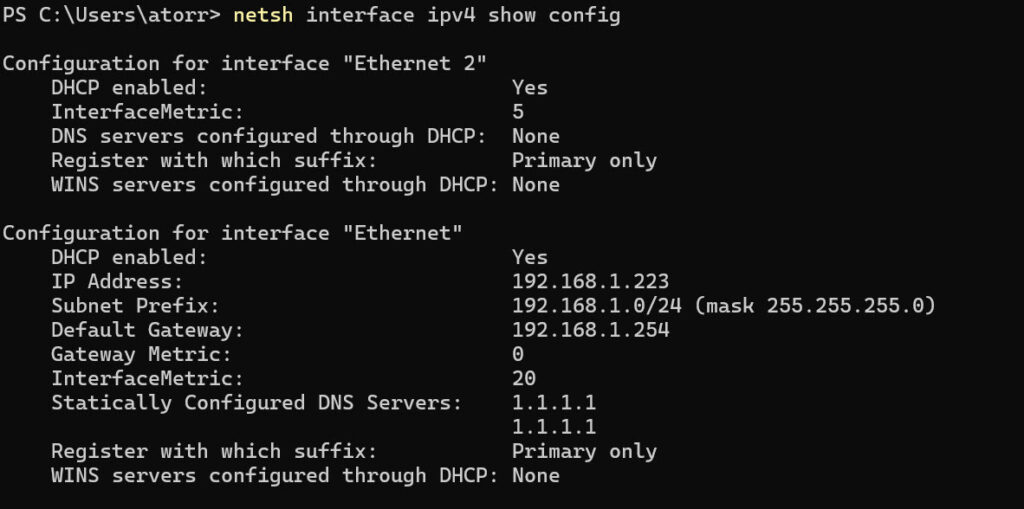
So in my above example, the interface I am looking for is Ethernet. You may have more or they might be named differently but look for the one with the IP Address, Subnet, Gateway and such filled.
Ok so I have the interface, so now how to do I change it?
netsh interface ipv4 set dns name="Ethernet" static 8.8.8.8
You will see nothing, now how do I check this?
netsh interface ipv4 show config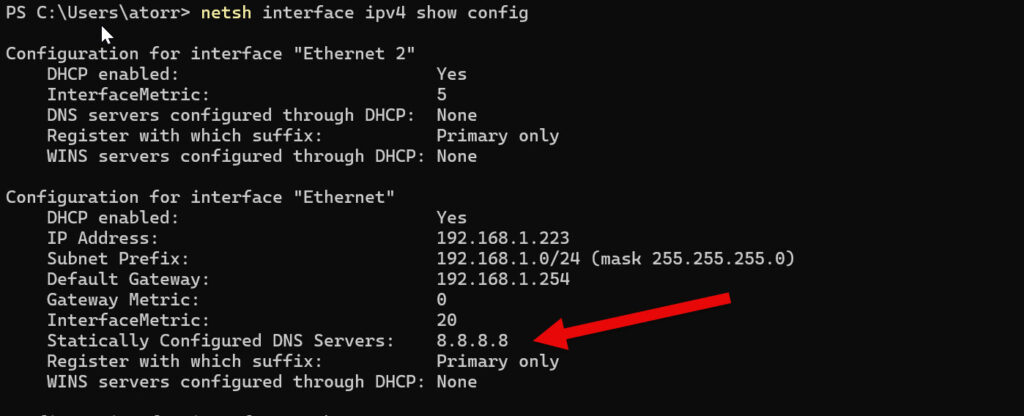
Now you can see the DNS is set to Google’s. So now ping google.com and all should be working.