 By Anthony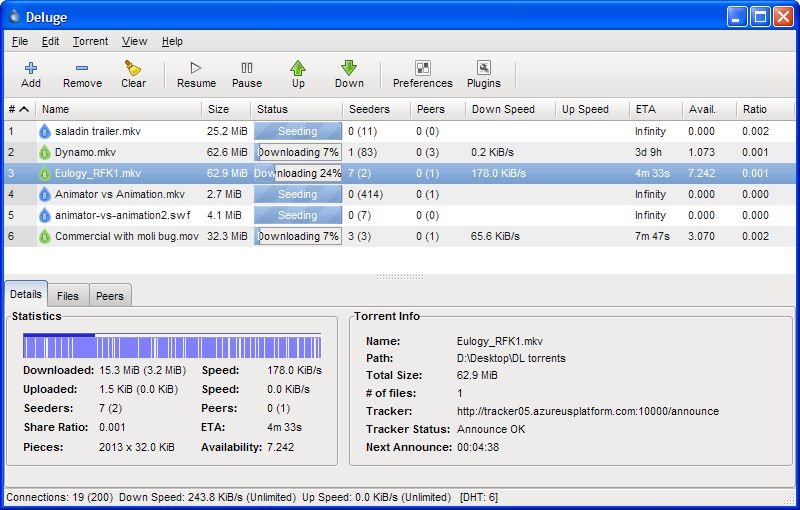
Source: https://www.linuxbabe.com/ubuntu/install-deluge-bittorrent-client-ubuntu-20-04
You can install Deluge BitTorrent daemon on a server and manage the program via the Deluge web interface (You control it in a web browser). Use the following commands to install Deluge daemon and Deluge Web interface on Ubuntu 22.04 server.
You know the drill, password change, update, upgrade, and firewall.
passwd

apt-get update && apt-get upgrade -y

ufw allow 22
ufw allow 80
ufw allow 443
ufw allow 8112
ufw allow 58846
ufw enable
Now that we have this, we need to setup the ppa, and then install Deluge.
sudo apt install software-properties-common

sudo add-apt-repository ppa:deluge-team/stable

sudo apt install deluged deluge-web
Then create the deluge user and group so that deluge can run as an unprivileged user, which will increase your server’s security.
sudo adduser --system --group delugeThe --system flag means we are creating a system user instead of normal user. A system user doesn’t have password and can’t login, which is what you would want for Deluge. A home directory /home/deluge/ will be created for this user. You may want to add your user account to the deluge group with the following command so that the user account has access to the files downloaded by Deluge BitTorrent. Files are downloaded to /home/deluge/Downloads by default. Note that you need to re-login for the groups change to take effect.
sudo adduser your-username delugeOnce that’s done, create a systemd service file for deluge with your favourite text editor such as nano.
sudo nano /etc/systemd/system/deluged.serviceCopy and paste the following lines into the file. By default, deluged will run as a background daemon. Since we run it as a systemd service, which already runs in the background, so we add the -d (--do-not-daemonize) option to make it run in the foreground.
[Unit]
Description=Deluge Bittorrent Client Daemon
After=network-online.target

[Service]
Type=simple
User=deluge
Group=deluge
UMask=007
ExecStart=/usr/bin/deluged -d
Restart=on-failure

# Configures the time to wait before service is stopped forcefully.
TimeoutStopSec=300

[Install]
WantedBy=multi-user.target
To save a file in Nano text editor, press Ctrl+O, then press Enter to confirm. To exit, press Ctrl+X. Now restart deluge deamon with the following command.
sudo systemctl restart delugedLet us start Deluge on boot.
sudo systemctl enable delugedCheck that its running.
systemctl status delugedYou can see that deluged is running and autostart is enabled. If it’s exited or isn’t running, you may need to restart it with sudo systemctl restart deluged.

Accessing Deluge WebUI
To be able to access the deluge WebUI, we also need to create a systemd service file for deluge web.
sudo nano /etc/systemd/system/deluge-web.serviceCopy and paste the following text into the file. By default, deluge-web will run as a background daemon. Since we run it as a systemd service, which already runs in the background, so we add the -d (--do-not-daemonize) option to make deluge-web run in the foreground.
[Unit]
Description=Deluge Bittorrent Client Web Interface
After=network-online.target

[Service]
Type=simple
User=deluge
Group=deluge
UMask=027
ExecStart=/usr/bin/deluge-web -d
Restart=on-failure

[Install]
WantedBy=multi-user.target
Save and close the file. Then start and enable deluge-web, check its status.
sudo systemctl start deluge-web

sudo systemctl enable deluge-web

systemctl status deluge-web
Once the deluge-web service is running, it listens on TCP port 8112. Now in your Web browser address bar, type
your-server-ip:8112
You will be asked to enter a password, which by default is deluge, to access the Web UI. (Your firewall might be preventing access to port 8112, so check your firewall setting if you can’t access the web UI).

It’s recommended to change the default password. After you choose to change password, the connection manager window will pop up asking you to connect to Deluge daemon which is listening on 127.0.0.1:58846. Select the connection and click Connect button.

Then you will be able to change the WebUI password.

To add new torrents, click the add button on the upper left corner. You can add a torrent file from your local computer or add magnet link. By default, files are downloaded to /home/deluge/Downloads directory.

Killer Source: https://www.linuxbabe.com/ubuntu/install-deluge-bittorrent-client-ubuntu-20-04