Mount sFTP folder as local drive
As we grow, remote storage is something that we adventually get for ourselves or we get for work. You do have backups right?
We are going to work in Linux, Ubuntu* as I already wrote an actical for with Windows version. Now we focus on Ubuntu Linux. This example wil work with pretty much any distro you will just have to change how the software is installed. So lets begin.
To mount an sFTP directory or folder as a local drive. We only need to run a few commands.
First we need to install SSHFS
sudo apt update && sudo apt install sshfs -yNow lets create that local mount point .
mkdir ~/remotedirLets mount the sFTP drive.
sshfs username@remote_host:/path/to/remote/dir ~/remotedirAdjust your information as needed.
If you don’t have an sFTP account, I highly recommend Interserver.net Their plans start as low as $2/month.
After we run said above command, you will be prompted for the password. ** You can forget this step if you already have your SSH key installed on your remote backup.
Here we go.
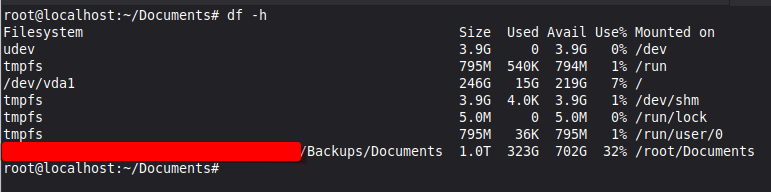
You now have a remote sFTP directory now mapped to a local directory. Which now will allow you to have backups running all the time.
** You can mount any drive to any location. If you want to map 5 drives you can, example Documents, Photos, Videos, Music, Downloads. Or you can mount one drive as /backups and run some simple cronjob to run your script to backup your pc.
Don’t forget when you mount a remote filesystem as a local directory, there really isn’t backup, meaning you delete the file or folder, it is gone.
This is great for mounting a shared drive, example a shared Documents folder where say your company could have a single drive mapped. You can also create a Software folder.
This was targeted to Linux users, if you run Windows check out this little how to here.
Happy Sharing!