Create sFTP Only + Chroot Server
Sometimes you need to create a server for clients to upload and download data to you, but you don’t want them to have system access, or other accesses that they don’t need or you dont’ want them to have. So how do we do this? How do we allow a secured access to our server for a client to get or upload files?
Well sFTP is your answer, this allows a secure file transfer, configured with a chroot system, which will prohibit your users from accessing anything else you don’t want them to see.
So lets begin. We are going to assume three things.
- One, you have a VPS or Sever setup.
- You are running a flavor of Linux, * in this example we are using Ubuntu.
- You know how to use the basic of basic commands in shell.
** I tested this on Ubuntu 18, 20, and 22 and Debian 10, 11,and 12 **
We need to connect to our newly created vps or server now and run a few of our basic commands, changing the root password, adding a firewall, and updating the system.
passwd root

apt-get update
apt install ufw

ufw allow 22
ufw enable

apt-get update; apt-get upgrade -y
So what we just did was first we changed the root password as these are usually sent to us via email or via a online form. So change this.
Second we did a quick update on our system and then installed a firewall, allowing SSH thru the firewall so we can SSH, sFTP, and update our system.
Thirdly we updated and then upraded to the newest packages and kernel.
Now we only have a few little commands to run once to enable, jailshell our users, and setup the sFTP server.
So first thing, we need to is edit our SSHd server to allow this. So
nano /etc/sshd/sshd_configNow scroll all the way to almost the bottom and look for this line.
#Subsystem sftp /usr/lib/openssh/sftp-server

## Now edit it to says this.

Subsystem sftp internal-sftp
Now in the same file, scroll down to the end and add the following.
Match Group sftp_users
    X11Forwarding no
    AllowTcpForwarding no
    ChrootDirectory /home
    ForceCommand internal-sftp
Save your file. Now lets restart the ssh server.
systemctl restart sshNow its time to start adding our users. So one time we need to run this command to create the correct group we referenced above.
groupadd sftp_usersNow lets add our first user. This will prompt you for a few questions, you can skip them all but the password field.
adduser anthonyNow lets add the above newly created user of anthony to our sFTP only list.
usermod -aG sftp_users anthonyNow that is it, to add new users you just have to run the above two commands and that is it.
Now lets test this system to make sure all is working correctly, So from the same command prompt.
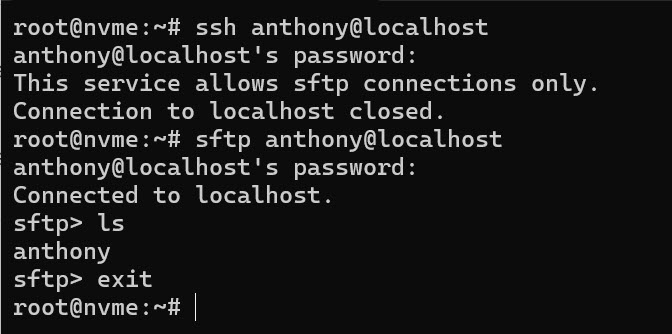
As you can see it works, now if you want to check it from another program like FileZilla please do, and you will see it works too, as we want to make sure before we turn this over to our client.
Now for me, I reboot the vps/server this one time, to make sure all the updates are indeed applied, the newest kernel and such.
rebootNow you have a sFTP server running on a potato.
